
Get There Connect
Get There Connect: Plan Trips, Find Rides, Earn Rewards, and More
Get There Connect is Oregon’s free trip planning, ride matching, metrics tracking, and rewards tool powered by RideAmigos.
With Get There Connect, you can:
- Explore and tap into commute options—transit, carpooling, vanpooling, biking, and walking.
- Find others going your way and share the ride in a carpool or vanpool.
- Track stats like money saved, calories burned, and reduced carbon emissions.
- Join challenges and earn local rewards, as available.
- Track your commutes live in the app.
How do I join Get There Connect?
- Create an account in Get There Connect using your mobile device or desktop computer, or log in here. To get started, you will need to provide your home and work address.
- Tip: If you don’t have a work address, enter the address of a place you frequently visit such as the grocery store, library, or somewhere you volunteer.
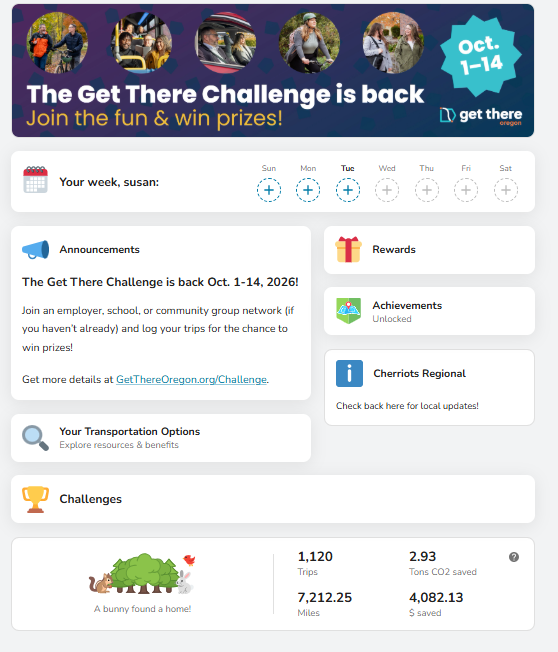
- Go to your dashboard to explore your commute options, find or start a carpool, track your savings, see if you’re eligible for local prizes, and more. Learn more about the features in our FAQ below.
Get There Connect can be accessed via the online dashboard or by using the Get There Connect app, which also allows you to track your trips live as you go! Find the app on the Google Play and Apple App Stores.
How do I log a trip?
You can now log recurring and one-time trips all in one place. You can either log trips manually or use the app to record a trip live as you commute.
Manually log a trip
- Click ‘Log’ then select the ‘Log a Trip’ button at the bottom of the screen on desktop or the blue “+” button on the mobile app.
- The mode will default to Bicycle. Click ‘Bicycle’ at the top to change the mode if needed. You can also add additional modes.
- Select one or multiple dates to log trips for in the calendar at the top. Note: You cannot log future trips.
- Specify whether it’s a round or single trip, times for arrival at and departure from your destination, starting and ending location, and trip type. Click ‘Save’.
Record a trip with the app
- Tap the ‘Record’ button in the main navigation.
- Select your mode from the available options, then begin recording your journey.
- The app will record your trip and travel time as you commute.
- When you reach your destination, tap ‘Stop’ to end the session and ‘Save’ to store your trip data.
If you’re using the carpool or vanpool mode and want to include your riders:
- Tap the ‘Add Riders’ button during your trip.
- Have each rider scan the QR code that appears on your screen.
- If you drop someone off early, tap ‘Drop off Rider’ to end their recording.
- Important: All riders need their own accounts and must be logged in to scan your QR code successfully.
How do I plan a trip?
You can explore different commute options for your trip in our trip planning tool.
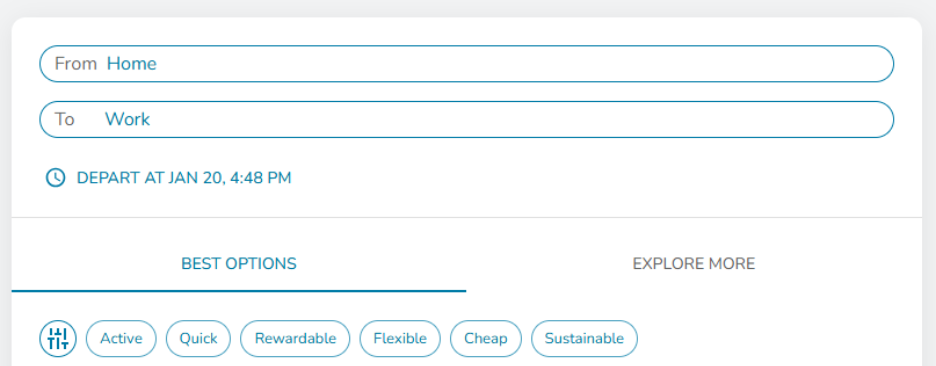
- Click “Your Commute Options” on the Dashboard.
- Enter a starting point and destination. One may automatically be entered for you if you’ve previously saved a commute.
- Your best options will appear and you can filter based on your preferences, including: active, quick, rewardable, flexible, cheap, and sustainable.
- Click on a mode for a preview of the route. You can ‘Open in Maps’ for Bike, Transit, and Drive for more detailed directions and routing. For transit trips, you’ll have the option to open in either Google Maps or the Transit App, if you have it installed.
How do I post a carpool or other travel pool?
To post a recurring or one time carpool request, or other travel pool, follow these steps:
- Go to “Pools” in the lefthand menu. There, you’ll find two tabs: ‘My Posts’ and ‘Search’.
- Select ‘Create Post’ in the My Posts section to post a ride to share with others.
- Select the mode you would like to use for your pool.
- Enter the starting point, destination, date, and time then click ‘Save’.
- You have the option to post Pools only for specific networks by selecting “Specific networks” when posting your pool.
- Your carpool offer becomes part of the ridematching system, automatically visible to others in both ‘Explore Options’ and ‘Pools.’
How do I find a carpool or other pool?
Get There Connect now offers “pools” for multiple modes, including:
- Carpooling: Share rides in personal vehicles (2-4 passengers).
- Vanpooling: Join larger group transportation (5+ passengers).
- Bikepooling: Coordinate cycling groups for safety and motivation.
- Walkpooling: Meet up with others for shared walking routes.
- Transitpooling: Meet colleagues at the transit stop and ride together.
To find a carpool or other pool type, follow these steps:
- Go to “Pools” in the lefthand menu. There, you’ll find two tabs: ‘My Posts’ and ‘Search’.
- Select ‘Search’ to enter your starting location, destination, and specific travel time to explore available ride options created by others.
- You can customize your search by selecting the filter button to:
- Choose whether you want to be matched with all users or only within specific networks (such as your company or location).
- Select if you want to be a rider, driver, or both.
- Include vanpools with waitlists.
- Add your specific time schedule requirements.
- You can also select which pool types you would like to view (carpool, vanpool, bikepool, walkpool, transitpool).
- A list of Pool Matches will populate, if available. The Pool Match Card will include tags if applicable such as:
- Common networks for users you share a network with.
- Specify if a user is available as a driver, rider, or both (when applicable).
- How recently the user was active in the platform.
- Click on the Pool Match Card for details on the ride, and select “Message” to send a message to the Pool Match to coordinate your ride. Your message will be sent to their email inbox and your email will be provided to them to coordinate outside of the platform.
How do I find bike share or Park and Ride options?
Knowing where bike share locations and Park and Ride lots are can help you make connections on transit or with carpools. Get There Connect lets you easily find locations for bike share, Park and Ride and more on the trip planning dashboard.
- Click “Your Commute Options” on the Dashboard.
- Click the “Explore More” tab to see traffic conditions, bike share locations, EV chargers, Park and Ride lots, and more.
How can I access my travel data?
You can download a .csv file of your trip log data from Get There Connect by following these steps:
- In your Account section, select “Exports” under Your Records.
- Use the time filter at the top to select the time frame for your data export.
- Click the download symbol to the right of “Activity log” to download a .csv of your activity data.
What are Commute Perks?
Commute Perks is a program for Get There Connect users to earn access to thousands of perks and discounts monthly from local businesses and global brands. To qualify for Commute Perks, you must log trips on at least 8 days per month. Commute Perks resets on the 1st of the month, and you must redeem your Commute Perks in the month you earn them.
To access, navigate to the ‘Rewards’ section on your Dashboard to find Commute Perks. Once you meet the requirements, you’ll be able to claim unlimited perks.
Can I link my Strava account?
Yes! You can link your Strava account to automatically have activities from Strava log in Get There Connect. Follow these steps to link your account:
- In your Account section, select “Connected Apps” under Settings.
- You’ll see a card that indicates if your Strava account is connected or disconnected. If your account is listed as disconnected, click on it and select “Connect with Strava”.
- You will be sent to the Strava website or app to log in to your account.
- After logging in to Strava, you’ll be redirected to Strava’s authorization page to allow Strava to share data with Get There Connect. Note that you must check “View data about your activities” for the connection to work.
- Once connected, confirm that Strava is listed as “Connected” in your Connected Apps section.
Note that by default, Strava is set up to only track commute trips to and from your listed work location. If you would like to track all trips, you can click into Strava from the “Connected Apps” section and update the permissions.
Additional Resources for using Get There Connect
RideAmigos Academy offers step-by-step directions and resources for all features in the tool.
If you need assistance or have any questions about Get There Connect, email us at [email protected].